QR Codes for Small Business: How to Make Ones That Actually Scan
Static or dynamic, what to encode, how big to print it, how much contrast it needs and how to count scans. A practical guide to QR codes that work on menus, flyers and shop windows.
Key takeaways
- Use static codes for permanent things like Wi-Fi and contact details; use dynamic codes only when the destination may change or you need scan counts you cannot get another way.
- Print a code at least one tenth as wide as the distance people scan it from: 2 cm for a table card, 10 cm for a poster, 20 cm for a shop window.
- Error correction level M suits most print; choose H only when you add a logo, because the logo counts as damage.
- Dark squares on a light background with a clear margin of four modules on every side is what scanners expect; inverted and low-contrast codes fail.
- Add UTM parameters to the encoded URL so your analytics can tell you which flyer, table or window each visit came from, then test on two phones before printing.
A QR code for a small business works when three things are right: it holds the right data, it is printed large enough for the distance people scan it from, and it has enough contrast and clear space around it for a phone camera to lock on. Get those right and a code on a menu, flyer, invoice or shop window will scan on the first try. This guide covers each decision in order, from choosing static or dynamic codes to testing the finished print.
Static or dynamic: decide this first
A static code stores the data itself. If you encode https://example.co.uk/menu, that exact text is baked into the pattern of squares. It never expires, needs no account, and works for as long as the destination exists. The downside is that you cannot change it. Print 5,000 flyers with a static link to a page you later move, and every flyer is dead.
A dynamic code stores a short redirect link, such as https://qr.example/a1b2, which a service forwards to your real destination. You can change where it points at any time without reprinting, and the service can count scans. The cost is dependence: if the redirect service closes or you stop paying, the code stops working, and every scan passes through a third party that sees your customers' visits.
For most small businesses the rule is simple. Use static codes for anything permanent: Wi-Fi details, a contact card, a link to your home page or your review page. Use dynamic codes for campaigns where the destination may change, or where you need scan counts and cannot add tracking yourself. If you control your own website, there is a middle path: a static code pointing at a short, stable address on your own domain, such as example.co.uk/offer, which you redirect wherever you like. That gives you most of the benefit of a dynamic code with none of the dependence.
Keep the encoded URL short. Fewer characters mean a simpler code with larger squares, which scans faster and prints more reliably at small sizes. A clean slug from the URL Slug Generator helps: example.co.uk/spring-menu rather than example.co.uk/index.php?page=42&ref=print.
What to encode
A QR code is just text in a format a phone recognises. Four formats cover almost everything a small business needs.
A web address
Encode the full URL including https://. Without the scheme, some phones treat the content as plain text and offer to search for it instead of opening it. Point the code at the specific page the person expects, not your home page. A code on a product label should open that product; a code on a receipt should open the feedback form.
Wi-Fi login
The Wi-Fi format lets a customer join your network without typing a password. The content follows a fixed pattern:
WIFI:T:WPA;S:CafeGuest;P:latte2026;;
T is the security type (WPA covers WPA2 and WPA3 on modern phones), S is the network name and P is the password. Semicolons, commas, colons and backslashes inside the name or password must be escaped with a backslash. The QR Code Generator has a Wi-Fi mode that builds this string for you, so you do not need to remember the syntax. Because the password is readable by anyone who scans, put the code on a guest network, never on the one your till or office computers use.
A contact card
A vCard puts your name, company, phone number, email address and website straight into the contact app. Each field sits on its own line:
BEGIN:VCARDandVERSION:3.0open the cardFN:Asha Patelis the display name;N:Patel;Ashais surname then first nameORG:Patel Plumbing,TEL:+441632960123,EMAIL:asha@example.co.uk,URL:https://example.co.ukEND:VCARDcloses it
A menu
Encode a link to a web page rather than a PDF where you can. A PDF menu laid out for A4 is painful to read on a phone, and every price change means a new file. A simple web page scales to the screen, loads quickly on café Wi-Fi and can be updated in minutes. If you must use a PDF, keep the file address stable so the code keeps working after you replace the file.
You can also encode plain text, an email address with a subject line, a phone number as tel:, an SMS, a location or a calendar event. Avoid separate codes for the Apple and Google app stores; one link to a page that detects the device and forwards is kinder to the person scanning.
Error correction: how much damage a code survives
Every code carries redundant data so it still reads when part of it is dirty, scratched or covered. There are four levels, and the choice affects both reliability and size.
| Level | Damage tolerated | Effect on size | Use it for |
|---|---|---|---|
| L (Low) | About 7% | Fewest squares | Clean screens, short-lived digital use |
| M (Medium) | About 15% | Slightly denser | Most print: flyers, menus, business cards |
| Q (Quartile) | About 25% | Denser again | Outdoor signs, packaging that gets handled |
| H (High) | About 30% | Densest | Codes with a logo in the middle, stickers, weathered surfaces |
Higher correction packs more squares into the same area, so each square is smaller at a given print size. That is the trade-off. M is the sensible default for print. Choose H when you place a logo over the centre, because the covered area counts as damage and eats into the allowance. Keep the logo well under the 30% that level H can recover, and never let it touch the three large squares in the corners, which the camera uses to find and orient the code.
Minimum print size by scanning distance
The most common reason a printed code fails is that it is too small for where it sits. The guideline most printers use is a ratio of about 10 to 1: the code should be at least one tenth of the distance from which people will scan it. A code scanned from 1 metre away should be at least 10 cm wide.
| Placement | Typical scanning distance | Minimum width | Comfortable width |
|---|---|---|---|
| Business card, table tent | 15 to 30 cm | 2 cm | 2.5 to 3 cm |
| Flyer, menu, invoice | 20 to 40 cm | 2 cm | 3 cm |
| Product packaging | 20 to 50 cm | 2.5 cm | 3 to 4 cm |
| A4 poster on a wall | 50 cm to 1 m | 5 cm | 10 cm |
| Shop window | 1 to 2 m | 10 cm | 20 cm |
| Van or vehicle livery | 2 to 5 m | 20 cm | 50 cm |
| Banner, billboard | 5 to 10 m | 50 cm | 1 m or more |
Two things push these numbers up. First, density. A code holding a 200-character tracking URL at level H has far more squares than one holding a 30-character link at level M, and each square still has to be big enough for the camera to resolve. Second, conditions. Dim lighting, glossy surfaces and people scanning at an angle all need a bigger code than the table suggests.
Worked example. A 25-character address such as https://example.co.uk/menu at level M fits in a 25 by 25 module grid. Add the required margin of 4 modules on each side and the printed area is 33 modules wide. At 2 cm overall, each module is 2 cm divided by 33, roughly 0.6 mm, which is comfortably above the 0.5 mm that most print processes resolve cleanly. By the 10 to 1 rule, that 2 cm code is good for scanning from about 20 cm, which suits a table card. Put a 110-character UTM-tagged URL in the same space and the grid grows to 45 modules plus margins, so each module shrinks to about 0.4 mm and the code becomes unreliable. Either print it at 3 cm or shorten the link.
Contrast and the quiet zone
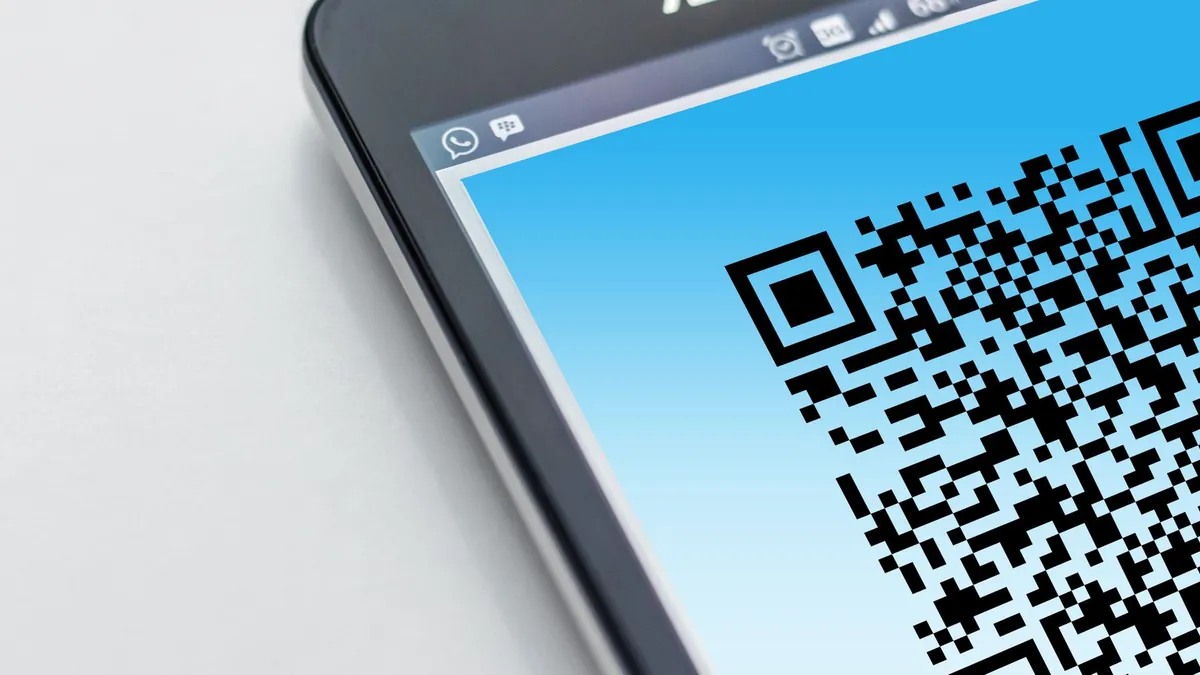
Scanners look for dark squares on a light background. Black on white is the safe choice. Dark brand colours such as navy, forest green or charcoal on white or cream also work well. What fails:
- Inverted codes, light squares on a dark background. Many camera apps refuse them outright. If your design needs a dark background, place the code inside a white box.
- Low contrast: pastel on white, mid-grey on light grey, yellow on white. The dark colour needs to be clearly darker, not just a different hue.
- Gradients, photos or patterns behind the code.
- Glossy laminate or glass that reflects the phone torch and blows out part of the pattern. Matte stock or a matte window film solves this.
The quiet zone is the blank margin around the code. The specification calls for four modules of clear space on every side, in the same light colour as the background. With 0.6 mm modules that is a margin of about 2.5 mm; at poster size it is closer to 1 cm. Do not put text, a border, a frame or a drop shadow inside it. Designers often crop it away to make the code look tidier, and that alone causes many failed scans.
Tracking scans with UTM parameters
A static code cannot count scans on its own, but your website analytics can, provided the encoded URL carries UTM parameters. These are small tags added after a question mark that tell Google Analytics and similar tools where a visit came from:
https://example.co.uk/spring-menu?utm_source=qr&utm_medium=print&utm_campaign=spring-menu&utm_content=table-tent
utm_sourceis where the link lives.qris a clear, consistent choice.utm_mediumis the channel, hereprint. Usepackaging,signageorreceiptas fits.utm_campaignnames the campaign or offer.utm_contenttells placements apart. Give the table tent, the window and the flyer different values and you learn which location actually gets scanned.
Keep every value lowercase and spelt the same way each time, because analytics treats Print and print as two different mediums. The UTM Builder assembles the link and handles the encoding of spaces and special characters. Then paste the finished link into the code generator.
The catch is length. The tagged link above is about 110 characters, four times longer than the bare address, and the code grows to match. If the code must stay small, create a short address on your own site, such as example.co.uk/tt, and set it to redirect to the full tagged link. The code stays simple, the tracking still works, and you can change the tags later without reprinting.
Test before you print
A ten-minute test costs nothing. A reprint of 2,000 menus does not. Work through this list with the final artwork, not a draft.
- Scan the design on screen with at least two phones: an iPhone using the built-in camera and an Android phone using its camera, plus a third-party scanner app if you have one.
- Print a single copy at real size on the real stock. Home printers and commercial presses differ, and so do matte and gloss finishes.
- Scan from the real distance in real light. Stand where the customer will stand. Try a dim corner and a window with glare.
- Scan at an angle of 30 degrees or so, and with the phone held slightly unsteadily.
- Cover a corner with your thumb. The code should still read at level M or higher. If it does not, the error correction is lower than you think or the code is too small.
- Follow the link through. The page must open over HTTPS, load in under a few seconds on mobile data and show what the sign promised.
- Export the right file. Use SVG for anything printed, because vector artwork stays crisp at any size. Use PNG for screens and documents. Never scale a small PNG up for print. If all you have is a screenshot or phone photo of an existing code with clutter around it, the Image Cropper can trim it to a square (pick the 1:1 shape and the part to keep), but leave the white border in place, because that is the quiet zone.
Finally, add a short line of text next to the code saying what it does, such as Scan for the menu or Scan to join Wi-Fi, and print the short web address underneath for anyone whose phone will not play along. A code with no explanation gets ignored.
Where to go next
Build the code itself with the QR Code Generator, which handles URLs, Wi-Fi and plain text, lets you pick the error correction level and exports PNG or SVG without uploading anything. If the code points at a campaign page, tag the link first in the UTM Builder, and keep the page address short and readable with the URL Slug Generator.
Related guides: UTM parameters.
Frequently asked questions
Do QR codes expire?
A static code never expires because the data is stored in the pattern itself; it works for as long as the website, Wi-Fi network or phone number it contains still exists. A dynamic code depends on a redirect service, so it stops working if that service closes your account, ends a free trial or shuts down. If you want a code to last, use a static one pointing at an address you control.
How small can a QR code be printed?
For close-range scanning, about 2 cm square is the practical minimum for a short URL at error correction level M. Each module, meaning each small square, should print at roughly 0.5 mm or larger. Codes holding longer data such as a vCard or a UTM-tagged link have more modules, so they need to be bigger, usually 3 cm or more, to stay reliable.
Can I put my logo in the middle of a QR code?
Yes, if you raise the error correction to level H, which can recover up to about 30% of the code. Keep the logo small, centred, and well under that limit, and never cover the three large squares in the corners that scanners use to find the code. Always test a logo version on several phones before printing, because a logo plus low contrast or a small size can tip it into failure.
Does a QR code have to be black and white?
No, but it does need strong contrast between the squares and the background, with the squares darker. Navy, dark green or charcoal on white or cream scan well. Light squares on a dark background, pastel colours and gradients often fail. If your design uses a dark background, place the code inside a white panel with a clear margin around it.
How do I know how many people scanned my QR code?
Add UTM parameters to the URL before you generate the code, for example utm_source=qr and utm_content=window, and your website analytics will report those visits separately. Use a different utm_content value for each placement so you can compare them. Alternatively, a dynamic code service counts scans for you, at the cost of depending on that service and routing every scan through it.
Try the tools from this guide
Related guides
Unit Conversion Cheat Sheet for Travel, Cooking and DIY
The exact conversion factors for length, weight, temperature, speed and data, shortcuts you can do in your head, and the traps: fluid ounces, tons and kilobytes.
Read the guide
How to Pick a Random Winner Fairly for Giveaways and Draws
Where browser randomness comes from, how to clean and weight an entry list, how to document a draw so nobody can dispute it, and the legal basics every promotion needs.
Read the guide
Placeholder Content for Design and Testing: A Practical Guide
Where lorem ipsum came from, when real-looking copy works better, how to make safe test data from fake names and dates, and a checklist for launch day.
Read the guide